Custom domain, access control, and security
Once the store is running on the default Amplify domain (*.amplifyapp.com), map your own domain, keep the site private while you add products and content, and decide what web security you actually need.
Configuring your custom domain
Amplify assigns a default subdomain for the first deploy. A store customers trust uses your own domain.
| Step | Action | Description |
|---|---|---|
| 1 | Add the domain | In the Amplify console, open your app, go to Hosting → Custom domains, and choose Add domain. |
| 2 | Configure DNS | Enter the root domain, for example yourdomain.com. Amplify shows the records to create, including CNAMEs that prove you own the domain for the SSL certificate. |
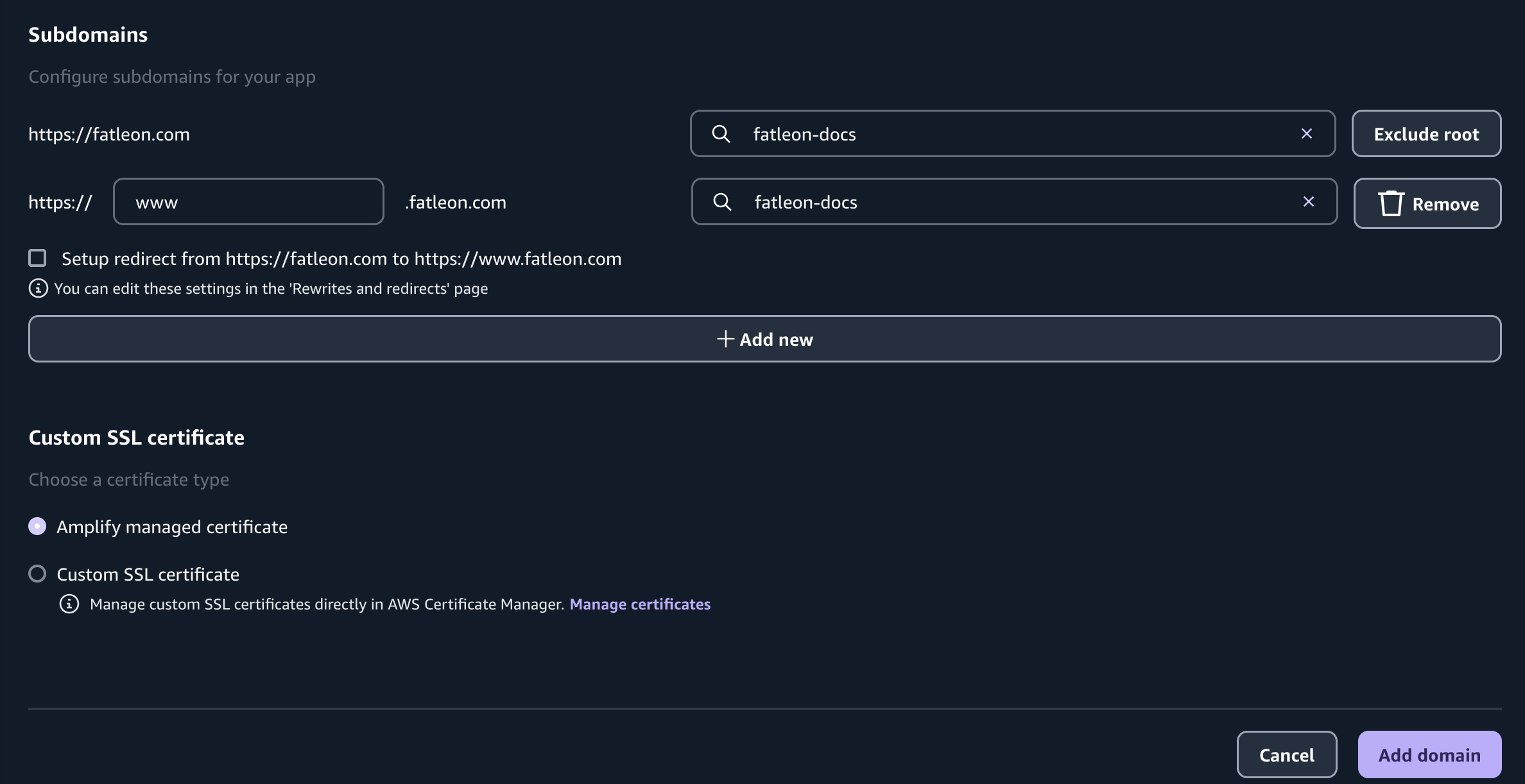
| 3 | SSL and subdomains | Amplify provisions a free SSL certificate and renews it. You can map www to the root domain, and you can attach branch preview subdomains. |
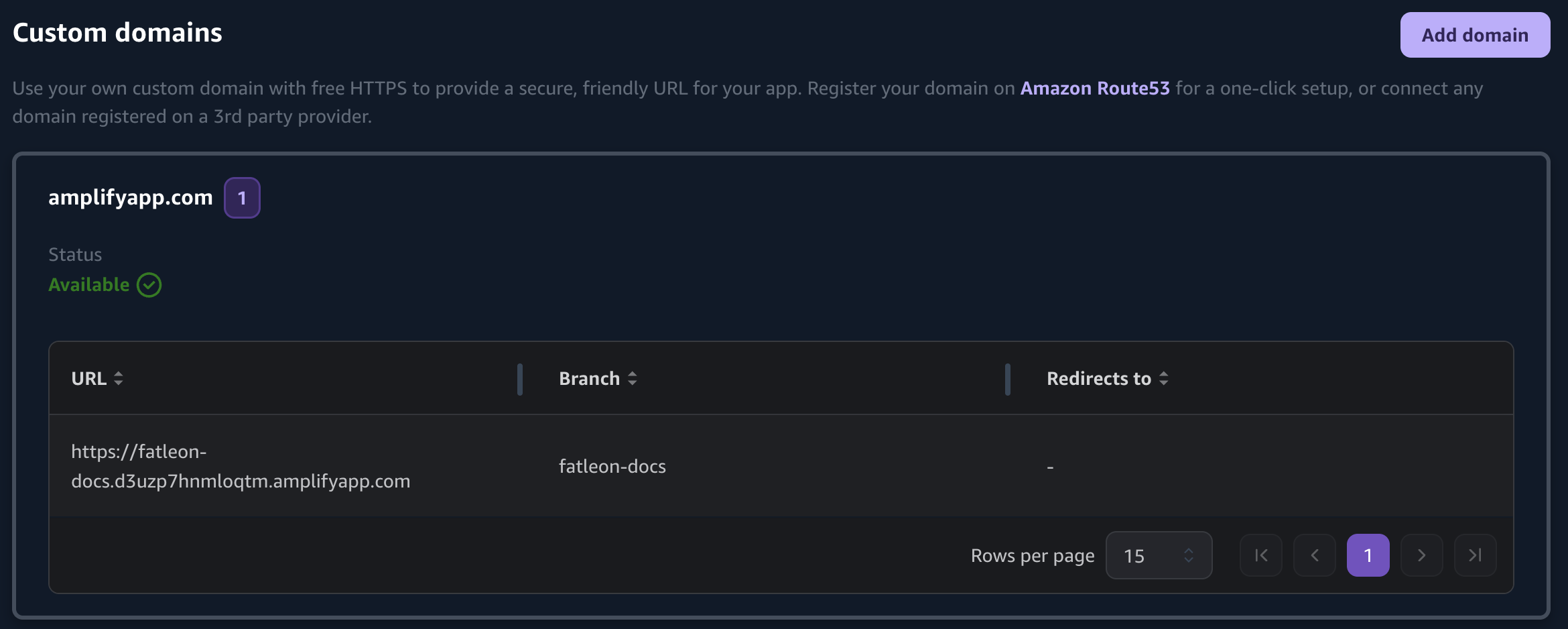
If the domain is in Route 53 in this same AWS account, Amplify recognizes the hosted zone and can create the DNS records for you. That is the setup recommended in Domain and email.
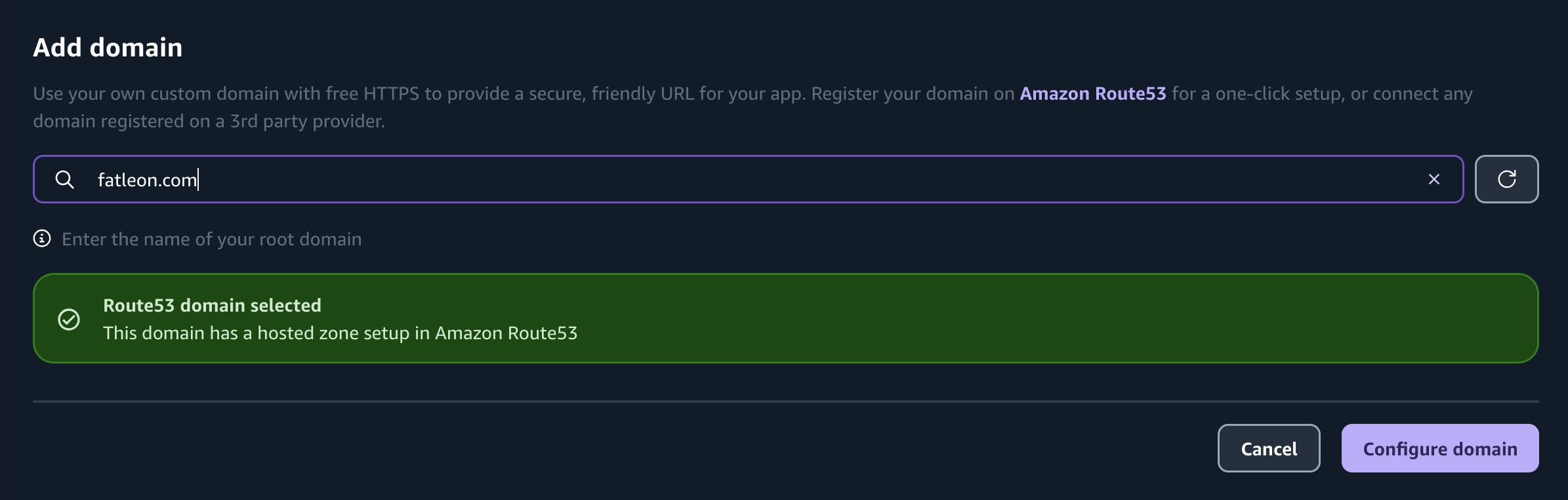
If DNS stays at Cloudflare, GoDaddy, Namecheap, or another provider, add the CNAME records Amplify displays at that provider. On the next screen, map the root domain and www, and keep Amplify managed certificate selected.
For the full DNS steps, see Connecting a custom domain.
Basic auth while you set up the store
While products, copy, and layout are still in progress, you can keep the public off the site. Amplify can require a username and password before any page loads.
Turn it on under Hosting → Access control. You can use one username and password for every connected branch, or a different password for a single branch.
Visitors then see the browser's login prompt. The prompt is a light gate for staging and decoration: it keeps an unfinished catalog from being browsed or copied before launch. Turn it off when you are ready for customers.
Fatleon is a server-rendered app. After you save access control, start a new build from the repository so the password takes effect. The steps are in Restricting access to branches.
Web application firewall
If the store later sees malicious bots or exploit attempts, you can attach AWS WAF at the edge. That protection is optional and billed separately from Amplify Hosting.
| Feature | What it does | Cost |
|---|---|---|
| AWS WAF | Blocks common web exploits, such as SQL injection and cross-site scripting, and can limit malicious automated traffic. | The Amplify console's recommended protection estimates about $8 a month for WAF plus $1.40 per million requests, and about $15 a month from Amplify. Bare AWS WAF pricing starts lower if you build the web ACL yourself. |
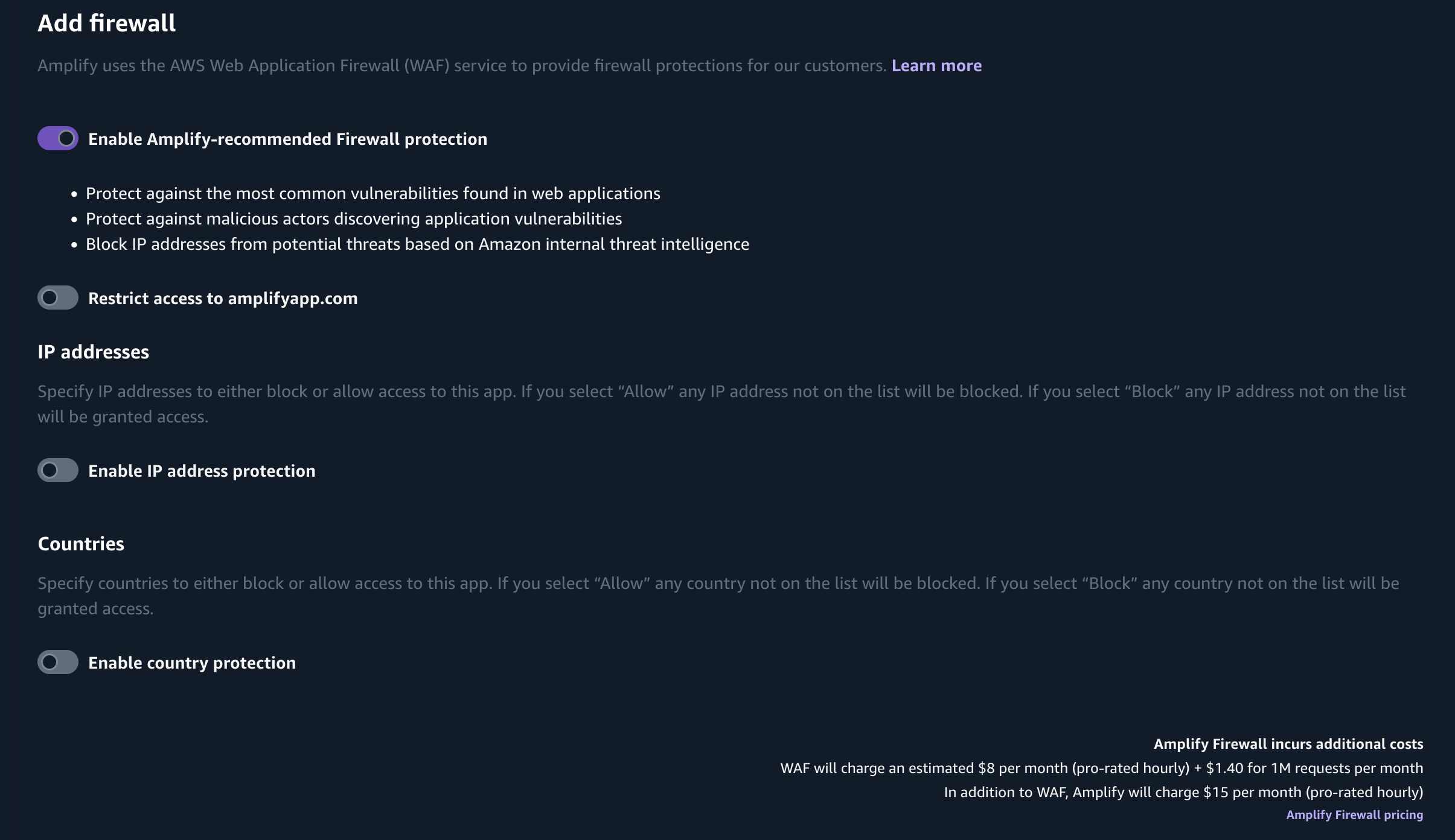
A first launch does not need this. Amplify Hosting already sits on CloudFront. Add WAF when traffic grows or you see targeted abuse. Console setup is in Enabling AWS WAF for an Amplify application.
Ready to proceed?
With the domain connected, open the admin address, sign in, and claim the console: Admin overview.